Data Not Syncing Between Devices
Troubleshooting steps for iCloud sync issues.
Sound Safari uses iCloud to sync your data across iPhone and iPad. If data isn't appearing on a second device, try these steps:
Check iCloud is enabled:
1. Open Settings on both devices
2. Tap your name (Apple ID) > iCloud
3. Make sure Sound Safari is toggled ON under "Apps Using iCloud"
Verify same Apple ID:
Both devices must be signed in to the same Apple ID. Check in Settings > tap your name at the top.
Force a sync:
1. Open Sound Safari on both devices
2. Make a small change on one device (e.g., edit a student name)
3. Wait 1-2 minutes for the change to appear on the other device
If sync still isn't working:
- Make sure both devices are connected to the internet
- Check that iCloud storage isn't full (Settings > Apple ID > iCloud > Manage Storage)
- Try closing and reopening Sound Safari
- Restart both devices
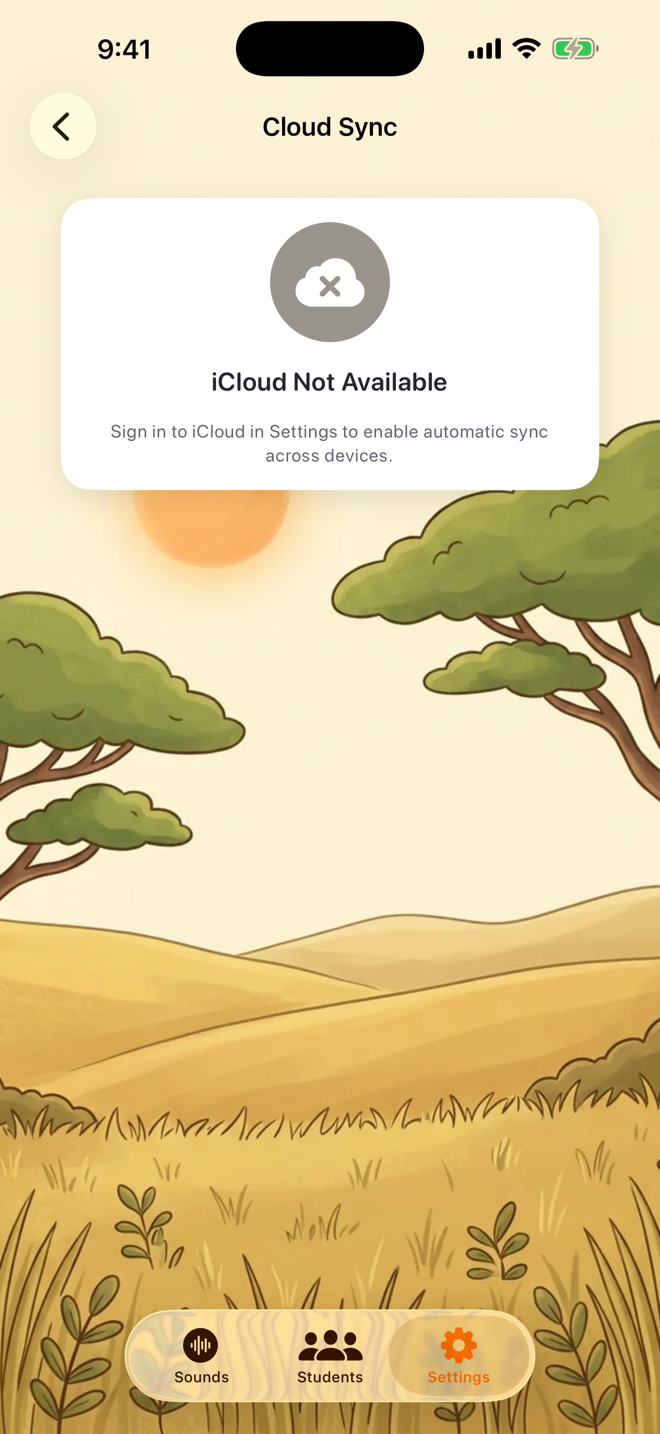
Important: iCloud sync is automatic whenever your device is signed in to iCloud — there is nothing to turn on in the app. Data created while a device was signed out lives only on that device until iCloud is enabled there.
Was this helpful?
Still need help? Share an idea