Writing and Managing SOAP Notes
How to generate, edit, and share SOAP notes.
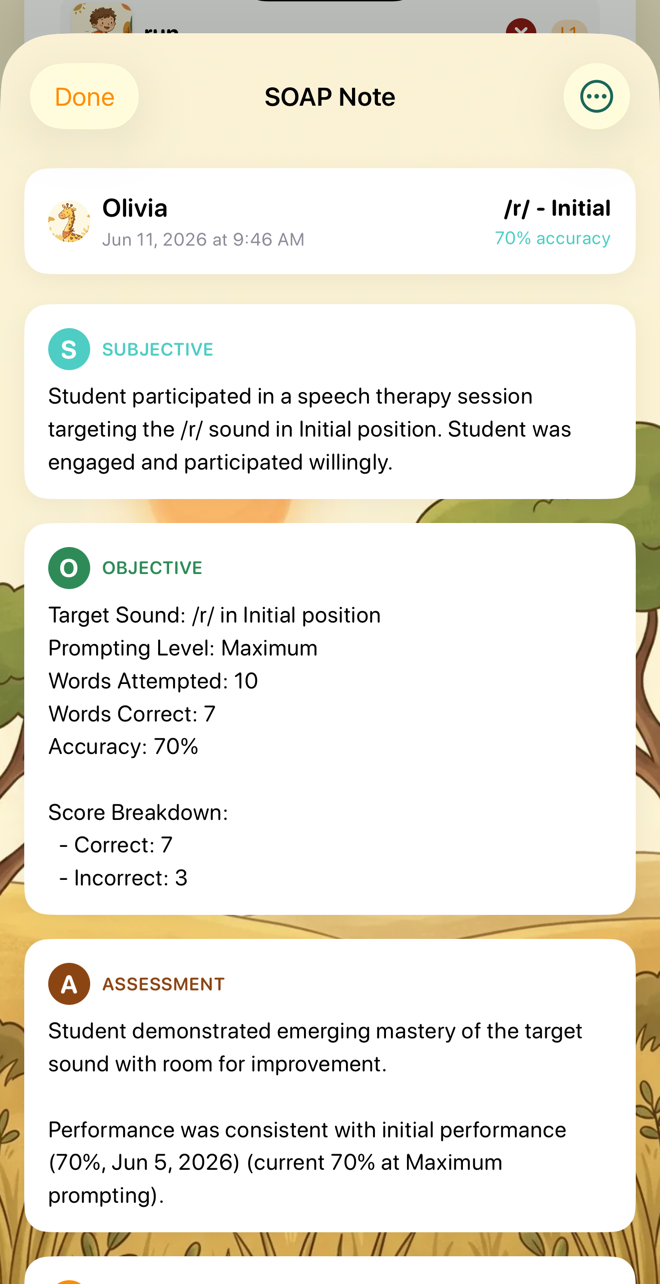
Sound Safari auto-generates SOAP notes from your session data.
Generating a SOAP note:
1. Complete a practice session
2. On the results screen, tap SOAP Note
3. Review the auto-generated note
4. Edit any section as needed
5. Copy, share, or save

What's auto-generated:
- Subjective: Student engagement and behavior observations
- Objective: Sound targeted, word position, accuracy, trial count, prompt level
- Assessment: Progress interpretation based on accuracy trends
- Plan: Recommended next steps based on session performance
SOAP templates:
1. Go to Settings > SOAP Templates
2. Create custom templates with placeholders:
- [student] — student name
- [sound] — target sound
- [accuracy] — session accuracy percentage
- [date] — session date
3. Favorite templates for quick access
4. Templates can be organized by category

Sharing notes:
Tap the share button to copy, email, AirDrop, or save to Files.
Drafting a SOAP note with AI
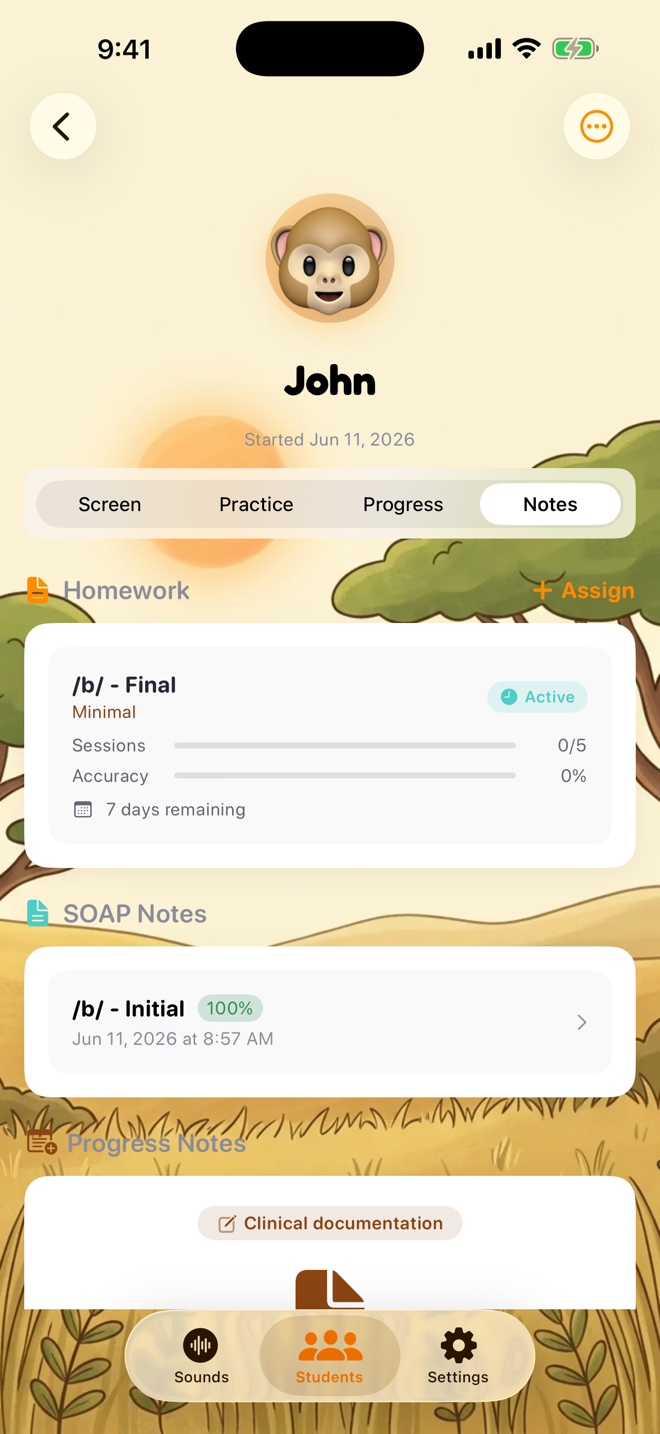
On devices that support Apple Intelligence, the SOAP note screen shows a second button below Generate SOAP Note: Draft with AI. It writes a first draft of all four sections — Subjective, Objective, Assessment, and Plan — from the same session data the templates use: target sound and position, accuracy, prompting level, engagement, and your session notes.

You're always the author. The draft lands in the same editable fields the templates fill, and nothing is saved until you review, edit, and tap Save. Treat it as a starting point — the clinical judgment in the note stays yours.
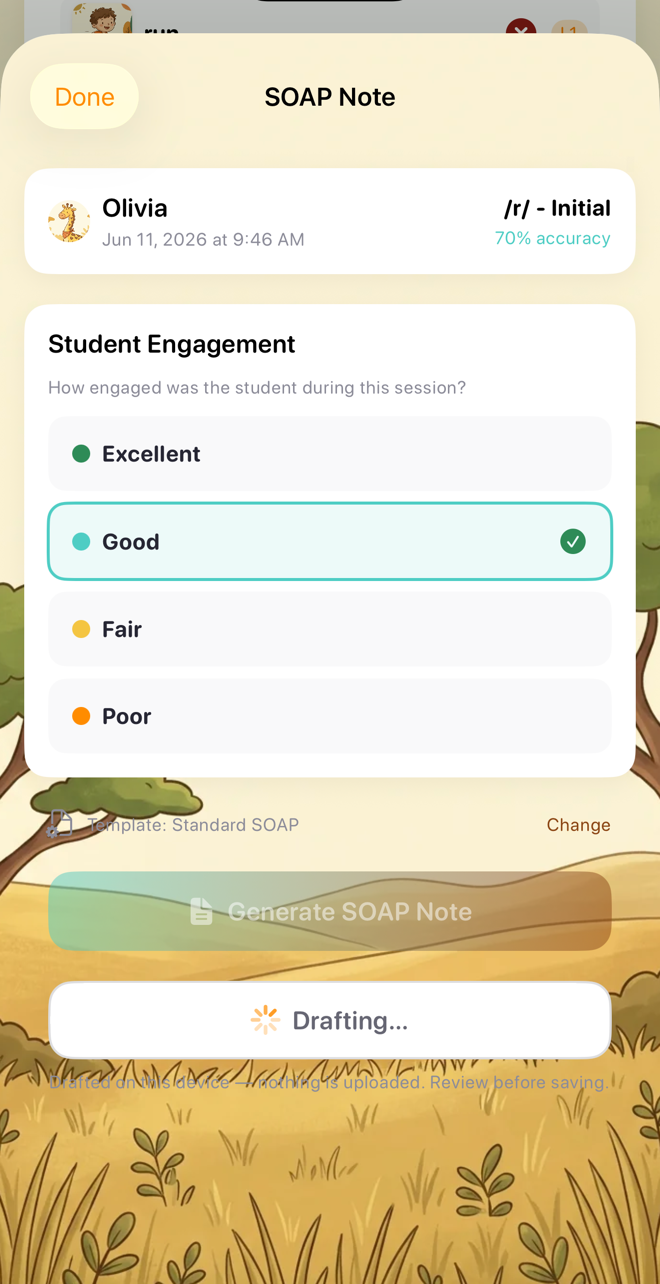

Everything stays on your device. Drafting runs entirely on-device with Apple Intelligence. Nothing is uploaded, and student names are never included — drafts refer to the child as "Student," just like the built-in templates. The note under the button says it plainly: "Drafted on this device — nothing is uploaded. Review before saving."
Requirements
A device that supports Apple Intelligence: iPhone 15 Pro or later, or iPad with A17 Pro or M1 and later
iOS 26 / iPadOS 26 or later, with Apple Intelligence turned on in Settings
On any other device the button simply doesn't appear, and the template flow works exactly as before
If the button doesn't appear: your device may not support Apple Intelligence, it may be turned off (Settings → Apple Intelligence & Siri), or the on-device model may still be downloading. The template-based Generate SOAP Note button is always available either way.
If a draft fails: you'll see "Couldn't draft this note. You can still generate it from the template." Try again, or generate from the template — your session data is unaffected.
Was this helpful?
Still need help? Share an idea