Adding and Managing Students
How to add, edit, and delete student profiles.
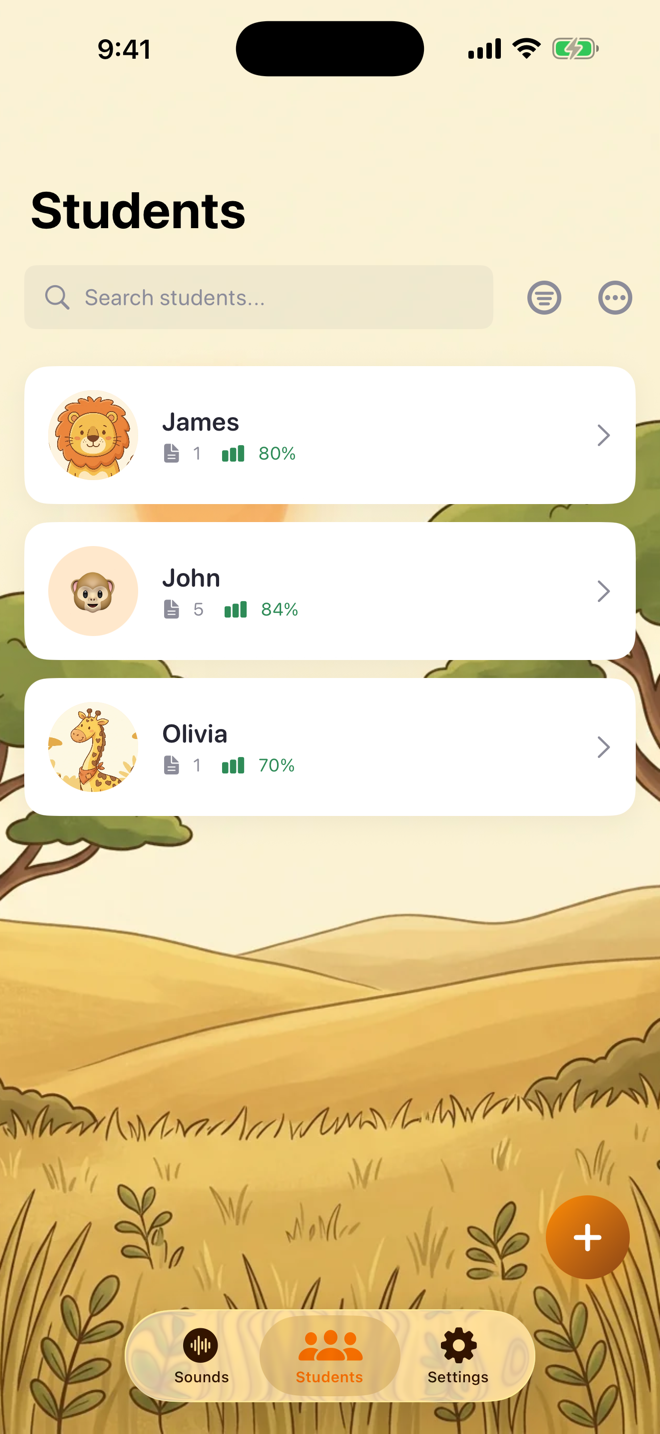
Adding a student:
1. Tap the Students tab
2. Tap the + button
3. Enter a name, choose an avatar, and optionally set a date of birth
4. Tap Save
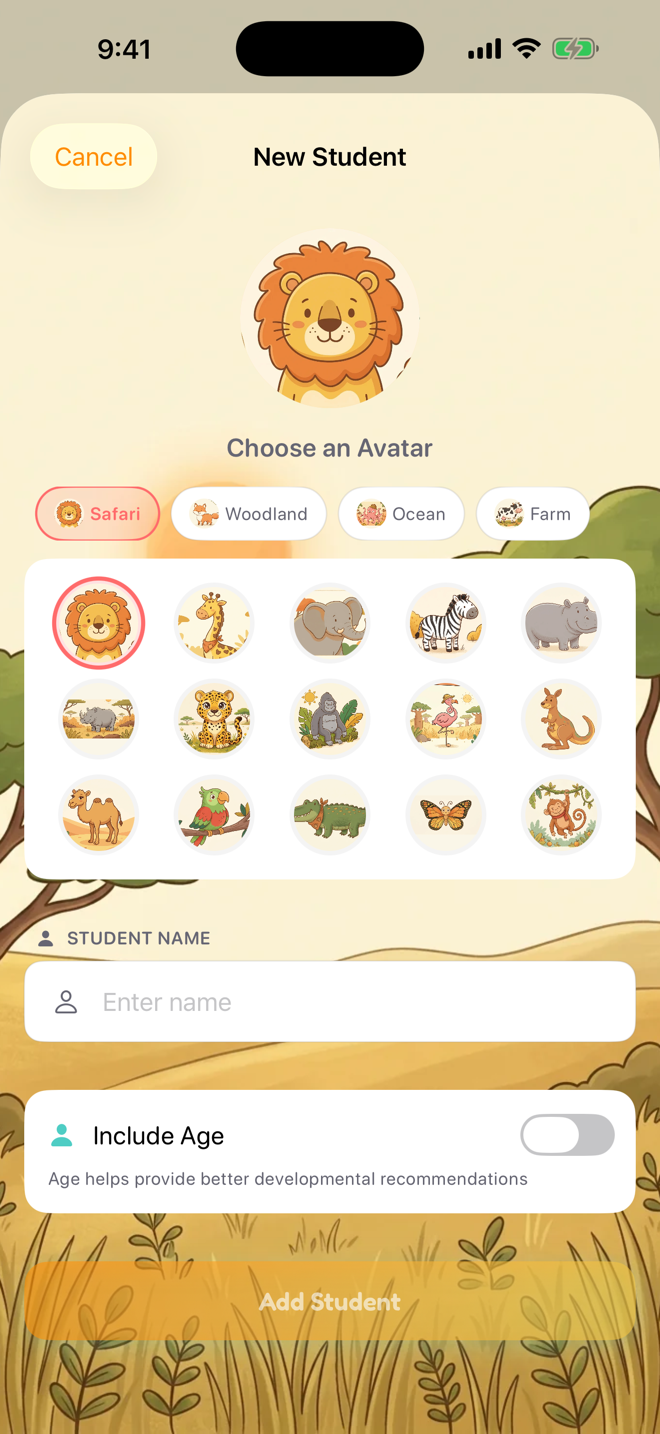
Privacy tip: Consider using initials or first names only, especially in clinical settings.
Editing a student:
1. Tap a student's name to open their profile
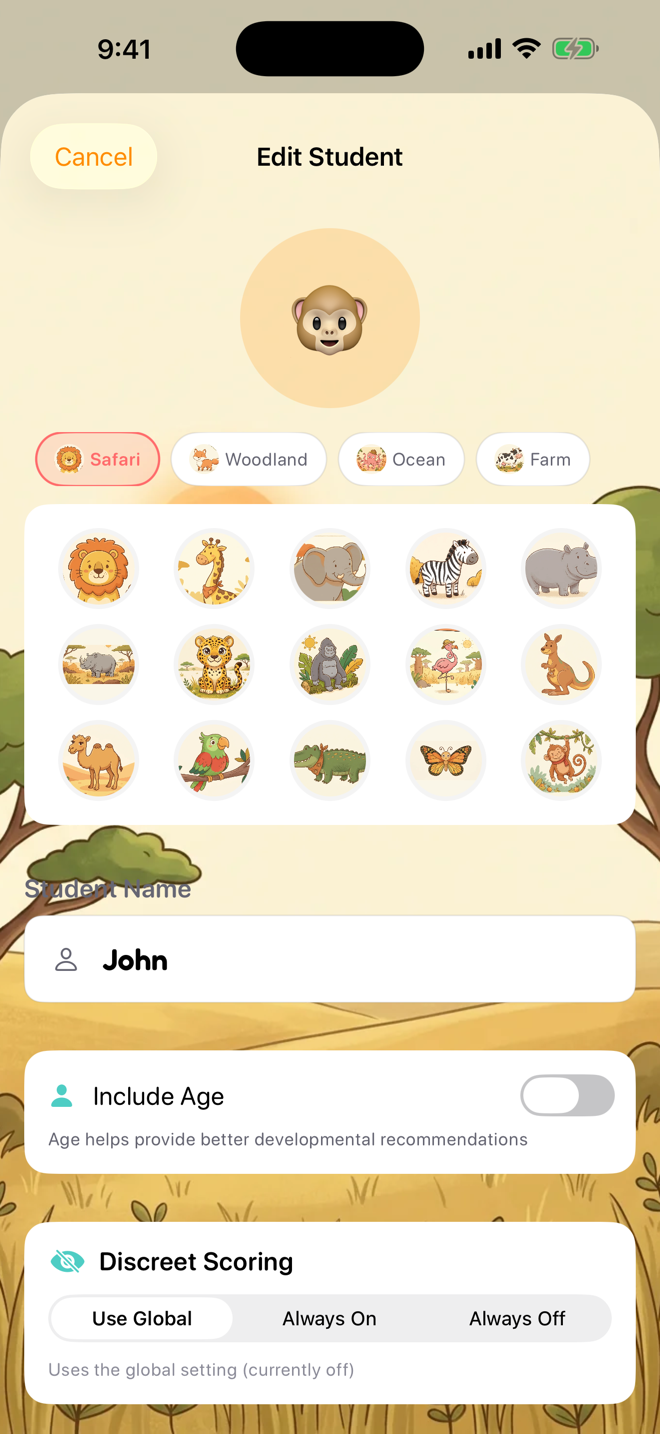
2. Tap the gear icon or Edit in the menu
3. Update name, avatar, or date of birth
4. Tap Save
Deleting a student:
1. Open the student's profile
2. Tap the gear icon > Delete
3. Confirm deletion
Important: Deleting a student permanently removes all their session data, SOAP notes, goals, and progress. This cannot be undone.
Bulk import:
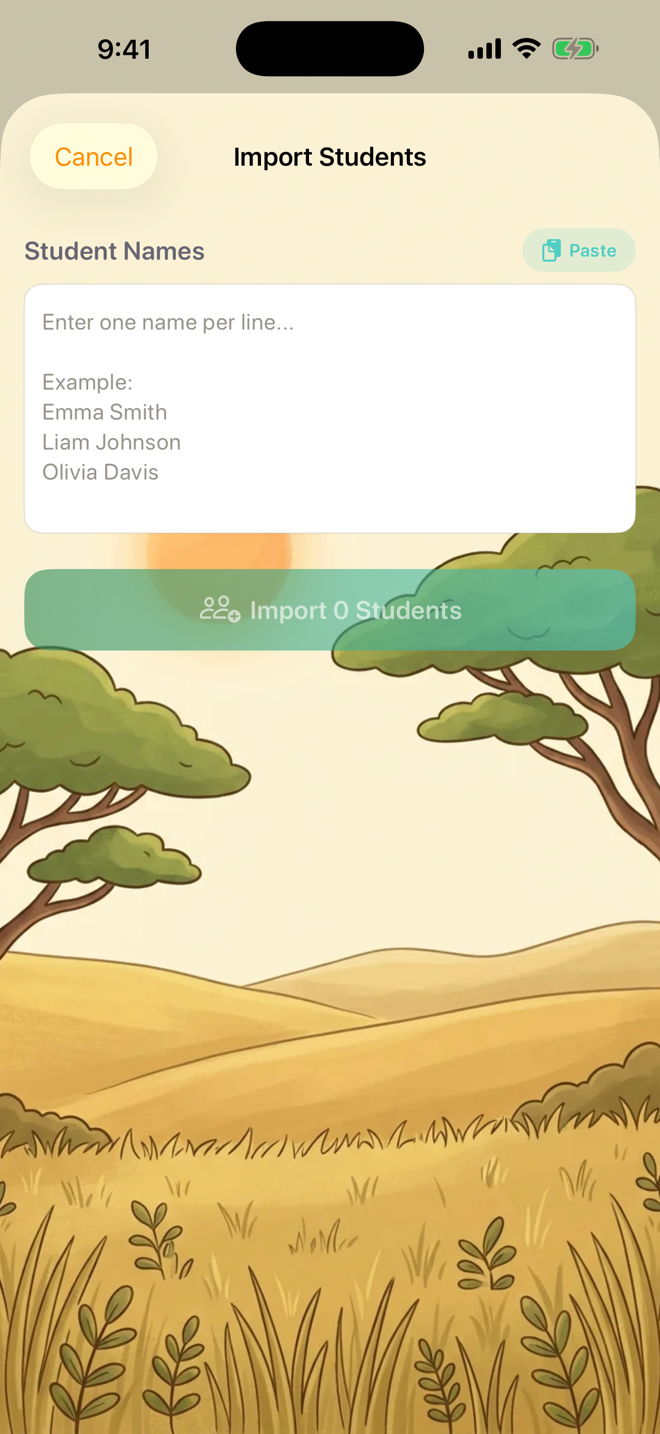
Therapists can add a whole caseload at once: on the Students tab, tap the ⋯ menu and choose Bulk Import. Type or paste one name per line — or tap Import from CSV to bring in a roster file exported from a spreadsheet (the importer maps names, avatars, and birth dates).

Was this helpful?
Still need help? Share an idea